
Projects
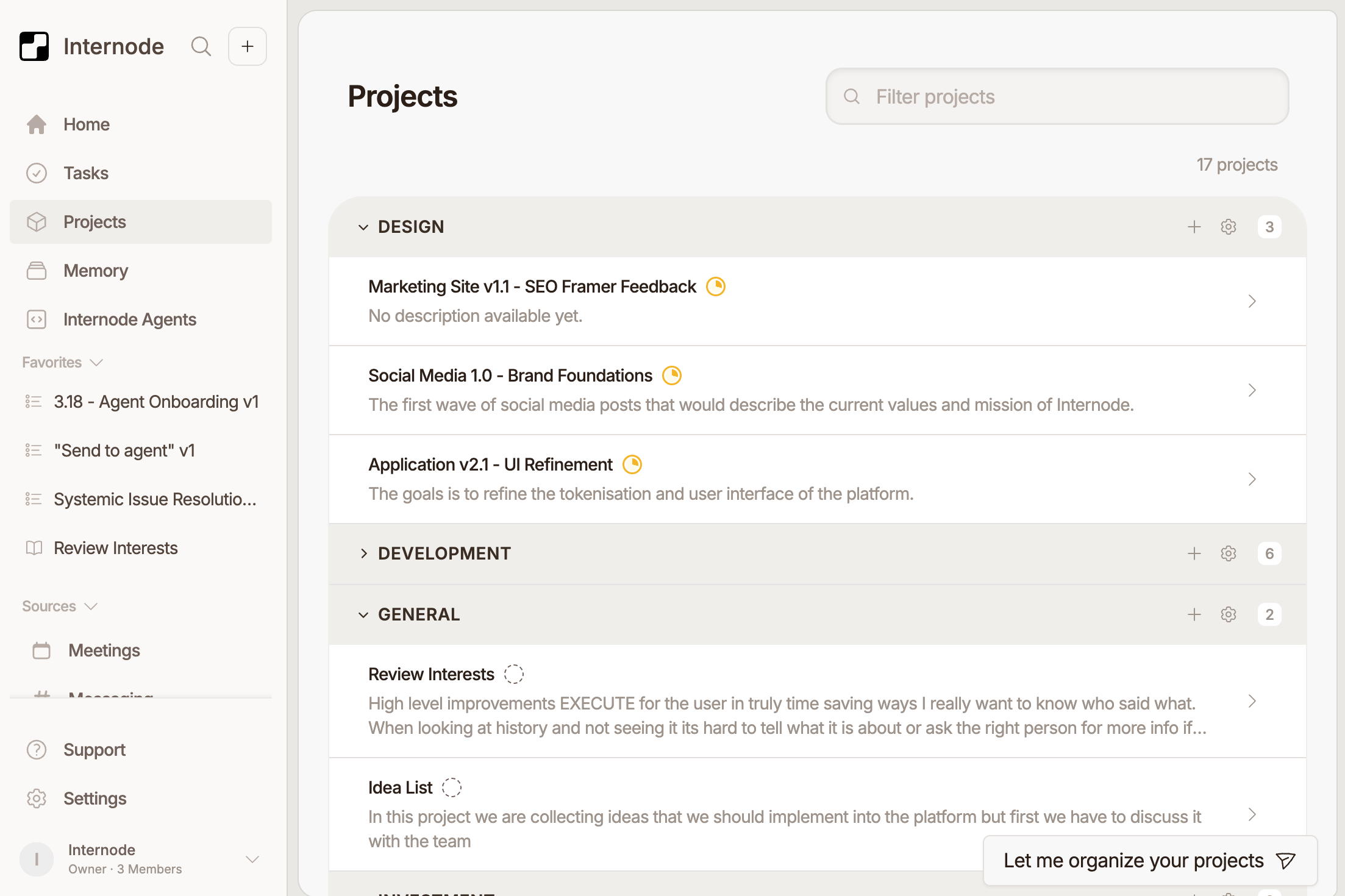
Projects bring related tasks, meetings, decisions, updates, and source material together around a shared body of work.
Open Projects
Choose Projects from the sidebar to browse workspace projects. You can search projects and, when available, view them grouped by team.
Create a Project
- Open Projects.
- Choose the create project action.
- Add the project name and useful context.
- Assign a team or status if your workspace uses those fields.
- Save the project.
Use a Project Page
A project page may include tabs or sections for:
- Triage, for reviewing project-related tasks that still need sorting.
- Tasks, for all tasks linked to the project.
- Details, for project name, description, team, status, and metadata.
- Updates, when project updates have been generated or published.
Available tabs can depend on the project data and your workspace configuration.
Manage Project Tasks
From a project's task workspace, you can filter, group, and update tasks in the context of that project. This is useful when you want a focused view instead of the full workspace task list.
Share Project Updates
If your workspace has Slack connected, project update workflows may let you prepare or broadcast updates to Slack. The available Slack channels depend on the workspace Slack connection and the channels your Slack user can access.
Edit or Delete a Project
Project owners, admins, or users with the right permissions can update project details. Deleting a project may be restricted to owners or admins.
Tips
Use projects for durable areas of work. Use tasks for individual action items, and use Memory when you need to investigate the source material behind a project.